Google Maps Leads to CSV: Clean and Enrich Results
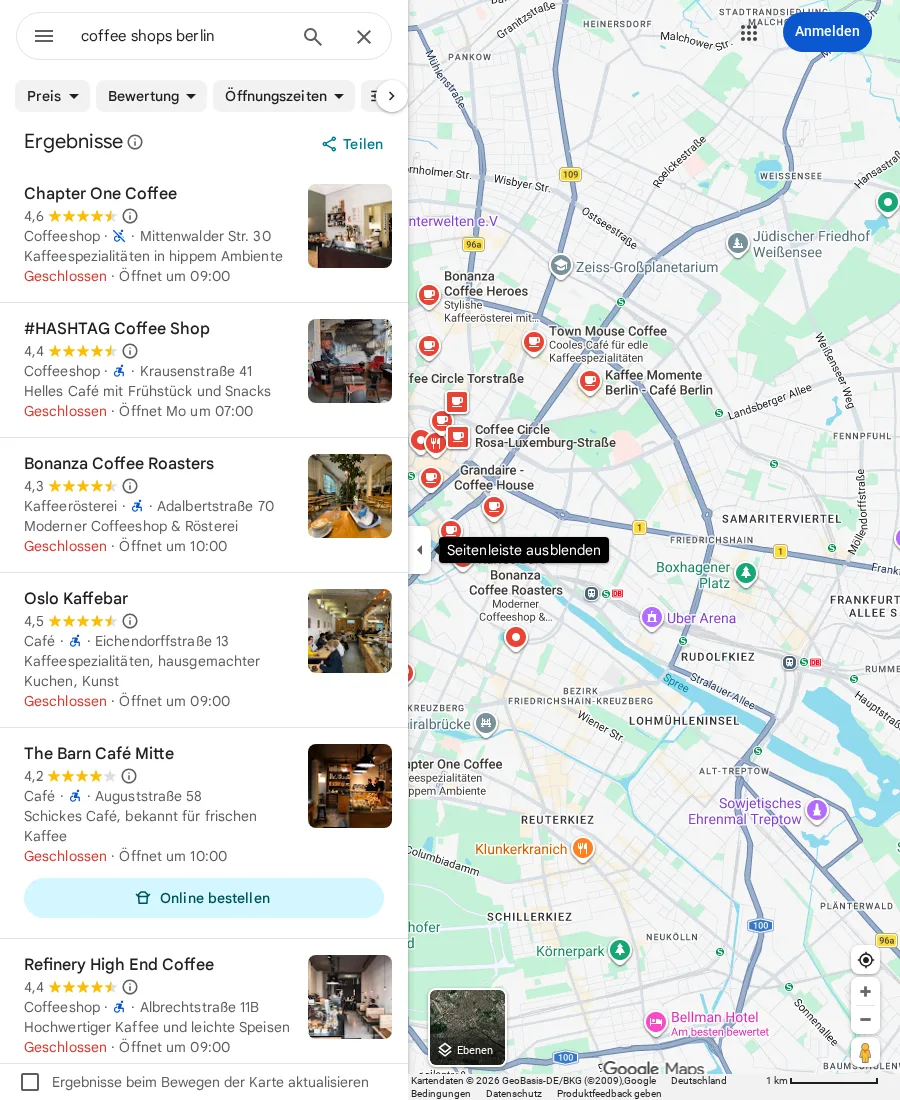
Turn a Google Maps search into a clean CSV with one row per business. Choose a business type, location, result count, and filename. The Scrapeer Flow searches Google Maps, removes repeated listings, opens each result for more details, and exports the enriched rows.
The result contains names, categories, ratings, review counts, addresses, phone numbers, websites, and Google Maps URLs. You can use the CSV directly or pass the rows to Google Sheets through n8n.
The result: one enriched CSV
Scrapeer’s Google Maps Leads Flow accepts four inputs:
| Input | Default value | What it controls |
|---|---|---|
| Business type | Dentists | The category or service entered into the search |
| Location | Berlin, Germany | The place added to the search |
| Maximum results | 100 | How many unique listings the Flow should retain |
| CSV filename | Google Maps Leads | The name used for the exported file |
The maximum-results setting accepts a value from 1 to 1,000. Start with 10 to 25 listings and confirm that the location, fields, and duplicates look right before increasing the scope.
The Flow then performs six visible stages:
- It opens a Google Maps search built from the business type and location.
- It waits for the results feed and scrolls that feed to load more listings.
- It extracts the visible business cards.
- It keeps unique rows by their Google Maps URL and stops at the requested limit.
- It opens each retained listing to enrich the row with additional details.
- It writes the collected rows to a CSV file during a Cloud Run.
This is a browser Flow, not an undocumented Google endpoint. Each navigation, scroll, extraction, loop, and output step remains visible in the editor. When a field disappears, you can inspect the Block that produced it.
Open the interactive Google Maps Leads Flow to inspect the Blocks and inputs before creating a project.
The output columns
The current Flow writes these eight CSV columns:
| CSV column | Source in the Flow |
|---|---|
| Name | Business name on the listing |
| Category | Displayed business category |
| Rating | Displayed rating, when present |
| Reviews | Displayed review count, when present |
| Address | Displayed business address |
| Phone | Displayed phone number, when present |
| Website | Website linked from the business listing, when present |
| Google Maps URL | Listing URL used to identify and deduplicate the result |
Phone numbers and websites are not guaranteed. A business can leave either field blank, and Google can render different fields for different listing types. Treat an empty cell as an output to review, not as proof that the Flow failed.
The Google Maps URL has a second job. The Collect Block uses it as the unique key, so repeated cards from scrolling do not automatically become repeated CSV rows. If your use case needs a different definition of a duplicate, change that rule before the run.
How to get a useful first CSV
1. Define the row you need
Decide which columns make the CSV useful before collecting anything. A local prospecting list could need name, category, address, phone, and website. A location analysis could need name, category, rating, review count, and Maps URL instead. Remove fields that do not support the result you want.
2. Open the Flow and inspect the inputs
On the Google Maps use-case page, choose Open in Scrapeer. The starter Flow uses dentists in Berlin as an example. Replace both values with the narrowest search that answers your question.
Keep the first result limit small. A 10-row review exposes wrong locations, category ambiguity, missing fields, and duplicate behavior faster than a large Cloud Run.
3. Follow the path from search to collection
The Go to Page Block builds the Maps search. The next Blocks wait for and focus the results feed. A loop scrolls that feed, and an extraction step reads the visible cards.
The Collect Block retains results until it reaches {{maxResults}}. It merges non-empty values and uses the Maps URL as its unique field. Those settings explain why the row count can stay below the requested maximum: the feed can end, listings can repeat, or the page can stop exposing new cards.
4. Check the enrichment loop
The Flow visits retained listings with a concurrency of two and continues when one item errors. That choice keeps one broken listing from ending the whole run, but it also means you must review rows with missing values afterward.
Look at the fields you actually need. If the project only needs business names and listing URLs, collecting phone numbers and websites adds work without improving the result. Remove fields that do not serve the task.
5. Run a small Cloud test and inspect the CSV
Run the Flow in Scrapeer Cloud, then inspect the small CSV for:
- results from the wrong city or similarly named place;
- repeated listings that use different URLs;
- category labels that do not match your definition;
- empty phone, website, address, or rating fields;
- incomplete rows caused by a page that did not finish loading.
The source Flow and its public configuration were reviewed on July 22, 2026. This article does not present that source review as a successful live scraping run.
Sending the rows to Google Sheets
The public Flow produces a CSV. If your process needs Google Sheets, you have two clear options.
The manual option is to import the CSV into a Sheet after you review it. That keeps an explicit checkpoint between collection and sharing.
The automated option is Scrapeer’s n8n integration. The documented n8n workflow runs a saved Google Maps Leads Flow, passes the business type, location, and maximum result count, normalizes the returned rows, and appends them to Google Sheets. It requires the Scrapeer n8n community node, a saved Flow, and a connected Google account in n8n.
Do not add the Sheets step merely because it is available. Decide who should receive the rows and how they should be reviewed before making the handoff automatic.
Where the output can go wrong
Google Maps changes its page structure and listing presentation over time. A change can stop a wait condition, move a field, or prevent the scroll loop from finding new cards.
When that happens, use Liveview to find the first Block whose expected page state no longer matches the browser:
- If the Flow stops before results appear, inspect the search URL and consent state.
- If it opens results but does not scroll, reselect the results feed.
- If cards appear but fields are blank, repair the relevant extraction field.
- If enrichment fails for some rows, open one of those listing URLs and compare its layout with a working row.
- If the page repeatedly fails to load the expected results, reduce the run and inspect the browser state before trying again.
The useful advantage of a visible Flow is not that a website can never change. It is that the failed assumption has a place on the canvas.
For a simpler output example that writes directly to a spreadsheet, see how the Ashby jobs Flow writes listings to Google Sheets.
Common questions
Can the Flow collect 1,000 Google Maps listings?
The input accepts up to 1,000 results, but the actual count depends on what the page loads, deduplication, access conditions, and the Flow’s current selectors. Start with 10 to 25. A higher setting is not a guarantee that Google Maps will expose that many distinct results.
Why are phone or website cells empty?
Not every business listing exposes a phone number or website. The enrichment step continues when one listing errors, so partial rows also need review after the run.
How does the Flow remove duplicate listings?
The Collect Block uses each listing’s Google Maps URL as its unique key and merges non-empty values from repeated cards. You can replace that key if your project defines duplicates differently.
Can I use the Flow locally?
The current template creates its CSV during a Cloud Run. You can inspect and edit every Block before starting that run.
Start with a useful sample
The right first result is not a huge CSV. It is a small file whose search, fields, and duplicate handling match the result you need.
Inspect the Google Maps Leads Flow, or download Scrapeer to open and edit visual browser Flows.
Before collecting or using data, review the current Google Maps Additional Terms and the rules that apply to your intended use.