Scrape Ashby Jobs to Google Sheets
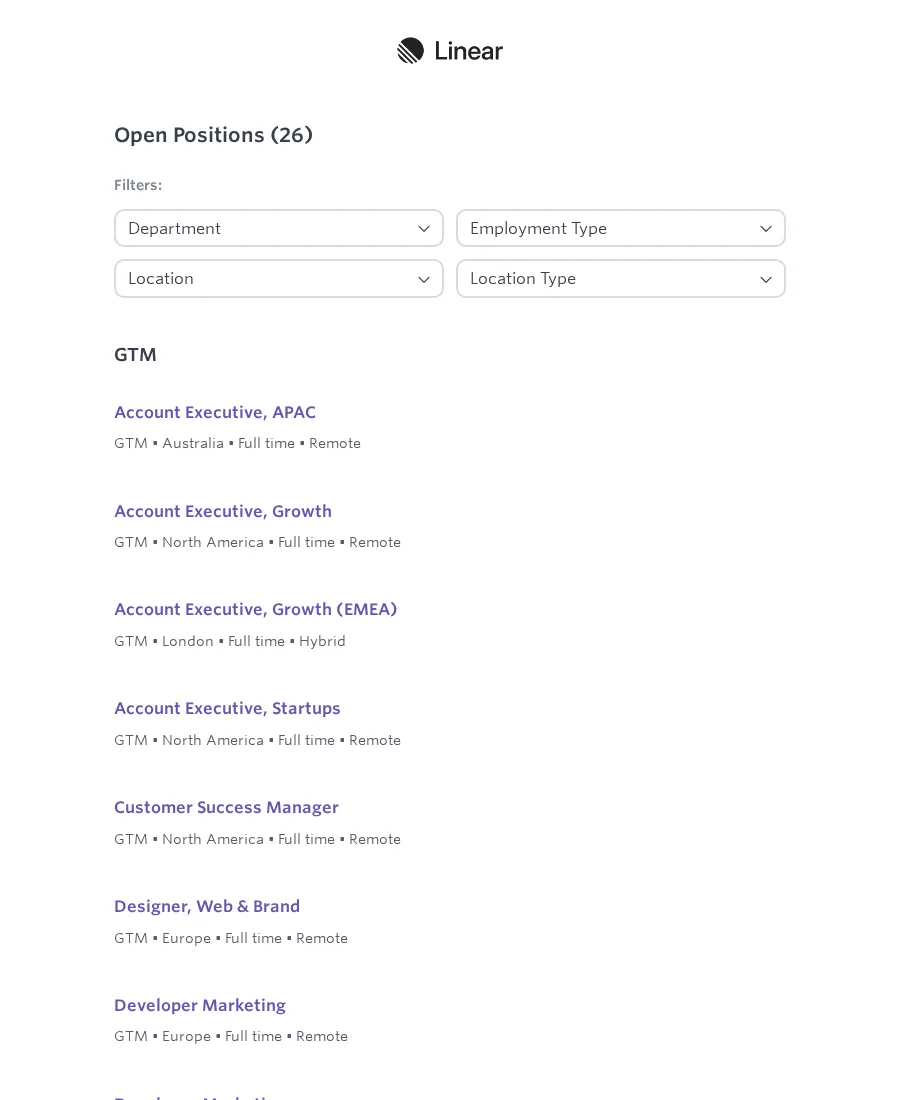
To scrape Ashby jobs to Google Sheets without maintaining a script, you need a browser Flow that extracts the job cards, keeps their links aligned with the right rows, and writes predictable columns to a connected spreadsheet.
Scrapeer’s public Ashby job listings Flow does exactly that for public Ashby company boards. Linear is prefilled as the working example, not hard-coded as the only target. The current extraction is capped at 25 listings, and the Google Sheets connection must be set up before the output Block can create a spreadsheet.
What the Ashby Flow does
The Flow starts with two inputs:
| Input | Default value | What it controls |
|---|---|---|
| Ashby job board | linear | The board URL and derived Company value |
| Spreadsheet name | Linear Jobs | The name used when creating the Google spreadsheet |
The first input shows the fixed https://jobs.ashbyhq.com/ prefix. Enter the company part or paste a complete public board URL. Individual job-posting URLs and addresses outside jobs.ashbyhq.com are rejected. Scrapeer turns that company part into the Company column value: linear becomes Linear, and the-browser-company becomes The Browser Company. The default points to Linear’s public Ashby board, which is also the page used to configure the starter selectors.
After opening the board, the Flow:
- waits for an element with the
.ashby-job-posting-brief-titleselector; - extracts up to 25 job rows with
titleanddetailsfields; - extracts the matching job-posting links from the page;
- combines the job fields with their URLs;
- creates a Google spreadsheet with an Open roles sheet;
- writes one row for each extracted listing.
Every step stays editable. You can inspect the target selector, extraction fields, row cap, URL mapping, and spreadsheet columns before the Flow touches Google Sheets.
Open the interactive Ashby Flow to inspect its Blocks before you create a project.
The spreadsheet columns
The current Google Sheets Block creates these columns:
| Column | Value written by the starter Flow |
|---|---|
| Company | Company name entered in the starter form |
| Title | Extracted job title |
| Location / team / type | The combined details text displayed on the Ashby card |
| Job URL | Link to the individual Ashby job posting |
The Company value is derived from the selected board, so you do not enter the same company twice. If a brand uses unusual capitalization that cannot be inferred from its URL, edit the value in the Google Sheets Block after creating the project.
The details column also deserves inspection. Ashby boards can present location, team, workplace type, and employment information in one compact text area. The starter Flow keeps that displayed text together instead of claiming it can split every board into the same schema.
Set up the Flow step by step
1. Choose one public Ashby board
Start with a company whose careers page resolves to jobs.ashbyhq.com/<company>. Open it manually and confirm that the job list is public and that your intended collection is permitted.
Do not substitute a Greenhouse, Lever, Workday, or custom careers URL. Those pages use different markup and need a different Flow. The hostname check in this template is deliberately narrow.
2. Create the project from the starter Flow
Open the Ashby jobs use case and choose Open in Scrapeer. Enter the board and a spreadsheet name that will still make sense after the run.
For the first pass, leave Linear’s board in place. That lets you understand the existing selectors before changing the target.
3. Connect Google Sheets
The final Block creates a spreadsheet through a Google Sheets connection. Connect the Google account that should own the file, then return to the Flow and select that connection in the output Block.
Choose the account deliberately. A spreadsheet created in a personal Google Drive is not automatically available to the team that requested the data. Scrapeer handles the browser Flow and the Sheets action; sharing permissions still belong to Google Drive.
4. Inspect the extraction limit and fields
The extraction Block currently stops at 25 listings. If the board has more roles, the starter Flow does not paginate or guarantee a complete company-wide export. A 25-row cap is useful for verifying the output, but it is a concrete limit, not a performance estimate.
Before changing it, run the page in Liveview and inspect how the board loads additional jobs. An increased row count only helps when the browser has actually loaded more matching elements.
Review the title and details extraction fields. If you need a separate location or department column, split the source only after checking that the target board presents those values consistently.
5. Check the derived Company value
For a different Ashby board:
- Replace
linearwith the company part from the new Ashby board URL, or paste the complete board URL. - Give the spreadsheet a name that identifies the target.
- After creating the project, check the Company value inferred from the board address.
Most lowercase and hyphenated Ashby addresses produce the expected company name. If the brand uses special capitalization, correct that value before running the Flow.
6. Run and review the spreadsheet
Run the Flow, open the created spreadsheet, and check:
- the number of extracted rows against the visible board;
- the first, middle, and last job title;
- whether every URL opens the job shown in the same row;
- whether the combined details field contains the information you need;
- whether the Company column names the actual target;
- whether the file sits in the intended Google Drive account.
The source Flow and its public configuration were reviewed on July 22, 2026. This article does not present that source review as a retained successful run.
Adapting the Flow to another Ashby board
Ashby supplies the careers-page platform, but each company controls its open roles and can influence how the page is presented. A different Ashby board is the smallest sensible adaptation because the hostname and broad job-card structure stay within the template’s intended scope.
Change one assumption at a time:
- Load the new board in Liveview.
- Check whether
.ashby-job-posting-brief-titlestill identifies job titles. - Compare the new card layout with the
titleanddetailsfields. - Check that the extracted link list has the same row count and order as the job list.
- Update the spreadsheet name and check the Company value inferred from the board address.
- Run a small review before using the sheet downstream.
If the board uses a different layout, repair the Wait for Selector and Extract Data Blocks on the canvas. If links and job rows no longer align, stop before writing to Sheets and fix the mapping rather than cleaning up a mislabeled spreadsheet later.
Scrapeer is a visual browser automation platform, so the repair stays attached to the step that broke. Liveview shows the target page beside the Flow, while the Result Inspector lets you compare extracted rows before they reach the output.
When to use a different starting Flow
Use this Ashby Flow when the source is one public Ashby company board and the desired output is a simple Google Sheet. Choose a different approach when:
- the careers site does not use Ashby;
- you need every job across multiple companies;
- the board requires authentication;
- you need structured fields that are only present on each job-detail page;
- you need change detection instead of a fresh spreadsheet;
- your collection or downstream use is not permitted.
For a Flow that collects and enriches browser results before producing a CSV, read how the Google Maps leads Flow is structured. The output and access constraints are different, but the same principle applies: inspect the visible browser path before scaling it.
Where this Flow breaks
The most likely failure is a selector change. If the Flow times out while visible jobs are on the page, inspect .ashby-job-posting-brief-title in the Wait for Selector Block. Re-select the title element in Liveview and use a selector that matches all intended job cards without matching page headings.
If titles appear but URLs are blank or shifted, compare the Extract Data result with the extracted anchor list. Both lists must represent the same jobs in the same order before the Sheets Block combines them.
If extraction succeeds but no spreadsheet appears, inspect the Google Sheets connection and the output Block’s error. Reconnect the intended account when the authorization has expired. Do not rerun repeatedly until you know whether earlier attempts already created files.
Common questions
Can the Flow scrape every job from an Ashby board?
Not in its current form. The extraction Block is capped at 25 rows, and the Flow does not implement pagination. Treat 25 as the documented maximum for the starter version.
Can I use any careers-page URL?
No. The input is restricted to public jobs.ashbyhq.com URLs. Greenhouse, Lever, Workday, and custom career pages need their own selectors and browser path.
How does Scrapeer fill the Company column?
Scrapeer derives it from the company part of the Ashby board address. For example, linear becomes Linear. Check the generated value when a brand uses capitalization that its URL does not preserve.
Does the Flow need a Google Sheets connection?
Yes. The output Block creates a spreadsheet in the connected Google account. Set up the connection and choose the intended account before the run.
Start with a 25-row review
This starter Flow is valuable because its scope is visible: one Ashby board, two extracted text fields, matching job links, four spreadsheet columns, and a 25-row cap. Review those assumptions before expanding it.
Inspect the Ashby jobs Flow, or download Scrapeer to open the starter Flow and test it with Liveview.